The Toggle That Turns Dead Bars Into Talk: Wi-Fi Calling for UK Prepaid SIMs
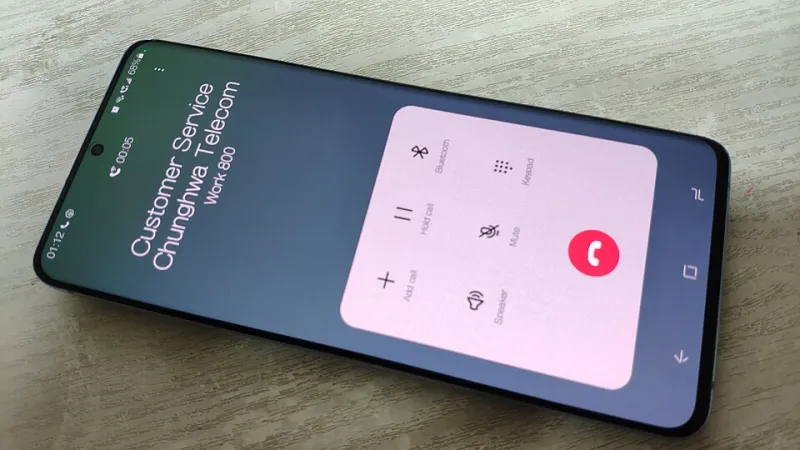
Photo: OnionBulb, CC BY-SA 4.0, via Wikimedia Commons
There is a particular kind of frustration that comes from standing in your own kitchen, phone in hand, watching one bar flicker like a faulty light bulb. The broadband is fine. The Wi-Fi is fine. Yet the mobile signal is doing its usual impression of a dropped call waiting to happen. That is exactly the moment Wi-Fi Calling was invented for — and exactly the moment plenty of prepaid users discover the setting has been sitting off since day one.
Wi-Fi Calling lets your phone route calls and texts over your home or office broadband instead of the mobile network. 4G Calling, often labelled VoLTE, is the cousin that keeps voice calls on the 4G network rather than dropping back to older tech. Both can make a prepaid SIM feel far more reliable than its signal bars suggest. Neither is guaranteed, and both are easy to overlook.
First, know which switch you are looking for
People often lump Wi-Fi Calling and 4G Calling together, but they are separate settings. Wi-Fi Calling is the one that uses your broadband. 4G Calling keeps voice traffic on the mobile network and matters more as older networks are switched off. On many phones you will find Wi-Fi Calling under Settings, then Phone or Connections, then Calling. On Android the path varies by manufacturer: Samsung, Google, Xiaomi and others all hide it in slightly different corners of the settings menu.
The important point is that the toggle is only half the story. Your network has to support the feature on your specific prepaid plan, and your handset has to be recognised by that network. A phone that was bought abroad, or one that arrived with firmware for a different carrier, may simply refuse to show the option. A grey import that looks identical to the UK model can behave very differently once a SIM goes in.
Why it is so often off on prepaid
Contract customers sometimes get these features switched on automatically. Prepaid is more variable. Some networks enable Wi-Fi Calling after activation, some require you to turn it on in your account or app, and some only offer it on certain plans. MVNOs — the smaller brands that run on the big networks — can be even more patchy. One might support Wi-Fi Calling but not 4G Calling. Another might support both on pay monthly but not on its cheapest prepaid tariff.
Then there is the handset side. Manufacturers often ship phones with Wi-Fi Calling disabled until the network sends the right configuration. If that configuration never arrives, the menu item can be missing or greyed out. A software update or a carrier settings update can suddenly make it appear. A reboot after inserting the SIM is not a silly suggestion; it is sometimes the difference between a dead option and a working one.
Check the network before you blame the phone
Start with your provider's current help pages or app. Look for the exact phrase Wi-Fi Calling, not just general coverage claims. Check whether it applies to prepaid, whether there is an activation step, and whether your handset model is listed. EE, O2, Vodafone and Three all offer Wi-Fi Calling on many plans, but the detail matters. Smaller brands such as Giffgaff, VOXI, Smarty, Lebara, Tesco Mobile and iD Mobile have their own rules, and those rules can change. Do not assume that because the host network supports it, every brand using that network does too.
If the network says yes and the phone still says no, look at the handset. Is it a UK model? Is the software up to date? Is it dual SIM, with the feature only available on the primary SIM? Has the phone been locked to another network in the past? These are boring questions, but they save a lot of swearing.
Find the toggle and switch it on
On iPhone, look in Settings, then Phone, then Wi-Fi Calling. You may need to enter your address for emergency services. On Android, open Settings and search for Wi-Fi Calling. If that finds nothing, try Connections, then SIMs, then your network, or look under the Phone app's own settings. Some phones put it in a quick settings tile; others bury it three menus deep.
If the toggle is there, turn it on and wait for the phone to register. You may see a small Wi-Fi Calling icon in the status bar, or the carrier name may gain a suffix. If nothing happens, toggle airplane mode on and off, restart the phone, and check for carrier settings updates. If the option is greyed out, it is usually a network or handset certification issue rather than a faulty phone.
Test it properly, not just optimistically
A toggle that says on is not proof. The proper test is to force the phone onto Wi-Fi only. Turn on airplane mode, then turn Wi-Fi back on. Make a call to a friend or a second phone. Check that the call connects, that you can hear and be heard, and that an incoming call arrives. Send a text as well. Some setups handle voice better than SMS, and you want to know before an emergency, not during one.
Then test it in the place that actually matters. If your kitchen is the dead spot, stand there with mobile signal off and Wi-Fi on. If you have a rural bolthole with no bars, try it there. Wi-Fi Calling is at its best when the mobile network is weak but the broadband is solid. It is at its worst when the broadband is a shaky 2 Mbps line that drops every time someone opens Netflix.
When it beats a booster or a pricier network
If you already pay for decent broadband, Wi-Fi Calling is the cheapest fix for an indoor dead spot. It costs nothing extra on most plans, and it avoids the faff of a signal booster. Be careful with boosters: legal, operator-approved repeaters exist, but random amplifiers bought online can cause interference and may not be allowed. Wi-Fi Calling is the safer first move.
It also makes sense if coverage outdoors is fine but your home or office is a bunker. Paying more for a network with stronger outdoor signal may not solve an indoor problem caused by thick walls. Conversely, if you have no broadband, or you are often in places with neither Wi-Fi nor mobile signal, Wi-Fi Calling will not save you. A different network or a properly approved booster may be the better answer.
The catches worth knowing
Wi-Fi Calling depends on your broadband, so a router reboot or an outage takes your calls with it. Some workplace or public Wi-Fi networks block the necessary traffic. Emergency calls over Wi-Fi can work, but location information may be less precise, so keep your registered address up to date and do not treat Wi-Fi Calling as a replacement for a working mobile signal in a crisis. Calls still come out of your prepaid allowance or credit according to your plan, and roaming rules can differ.
For most prepaid users, though, the first step is simple: find the toggle, switch it on, and run the airplane-mode test. If it works, you have turned a dead signal into a live call for free. If it does not, at least you know whether to chase your network, change your handset settings, or start comparing coverage instead of guessing.